

Last updated: March 2026
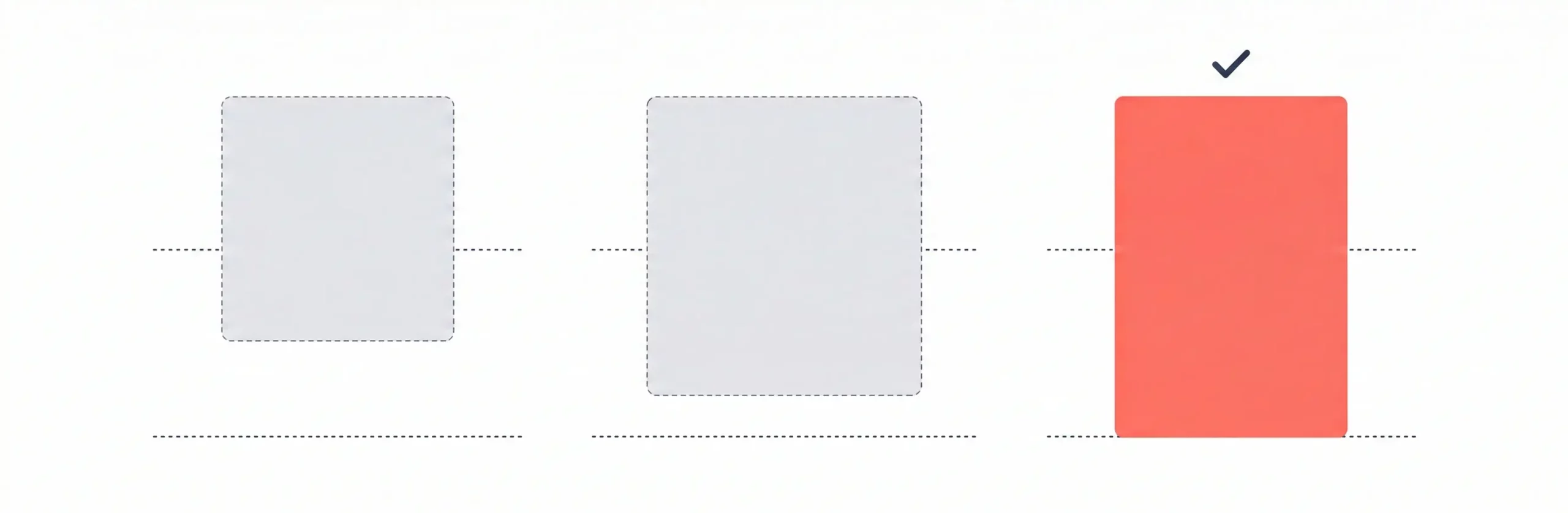
The best Pinterest pin size in 2026 is 1000 x 1500 pixels – a 2:3 vertical format that maximizes mobile screen space, matches Pinterest’s official recommendation, and consistently drives more traffic than any other pin dimension. Getting this right isn’t just about aesthetics. Wrong dimensions mean Pinterest’s algorithm buries your pin before it gets a fair chance. This guide covers every pin format, what changed with the 1500 px distribution rule, how to audit your existing pins, and how to automate the correct size so you never have to think about it again.
The Best Pinterest Pin Size in 2026 at a Glance
Before diving into format details, here’s the full spec table in one place. Bookmark this – it covers every pin type you’ll encounter.
| Pin Type | Recommended Size | Aspect Ratio | Max File Size | Formats |
|---|---|---|---|---|
| Standard static pin | 1000 x 1500 px | 2:3 | 20 MB (aim under 5 MB) | JPG, PNG, WebP |
| Long pin / infographic | Up to 1000 x 2100 px | 1:2.1 (max) | 20 MB | JPG, PNG |
| Idea Pin (image) | 1080 x 1920 px | 9:16 | 20 MB per image | JPG, PNG |
| Idea Pin (video) | 1080 x 1920 px | 9:16 | 2 GB (mobile) / 100 MB (web) | MP4, MOV, M4V |
| Video pin (organic feed) | 1000 x 1500 px or 1080 x 1920 px | 2:3 or 9:16 | 2 GB | MP4, MOV, M4V |
| Shopping / Product pin | 1000 x 1500 px | 2:3 | 20 MB | JPG, PNG |
| Carousel pin | 1000 x 1500 px or 1000 x 1000 px per card | 2:3 or 1:1 | 20 MB per card | JPG, PNG |
| Collections ad | Hero (2:3 or 1:1) + up to 24 secondary (1:1) | 1:1 / 2:3 | 10 MB per image | JPG, PNG |
| Board cover | 600 x 600 px | 1:1 | ~20 MB | JPG, PNG |
| Profile image | 400 x 400 px (165 x 165 minimum) | 1:1 (displayed as circle) | Small | JPG, PNG |
The default winner: 1000 x 1500 px (2:3)
One number to remember: 1000 x 1500 pixels. That’s Pinterest’s official recommendation, and it’s been the stable standard since around 2020. At this size, your pin fills the most vertical screen space on a mobile feed – and since over 85% of Pinterest traffic comes from mobile, that matters directly to your reach. The minimum accepted width is 600 pixels, but 1000 px gives noticeably sharper results on modern screens. Pinterest also accepts JPG, PNG, and WebP – with WebP now fully supported across the platform.
The height rule most bloggers miss: why 1500 px is the safe maximum
Here’s the part that trips up a lot of creators. Pinterest shared with Buffer that its algorithm will limit distribution for images longer than 1500 pixels. That’s not just a visual crop – it’s a reach penalty. Pins taller than 2:3 get truncated in the feed preview and receive reduced algorithmic distribution on top of that. The old advice that longer infographics meant more visibility is now actively harmful. Stick to 1000 x 1500 px as your default, and only go longer (up to 1000 x 2100 px) when the content genuinely requires it – and even then, put your primary message in the top 1000 x 1500 area.
For your profile, use a 400 x 400 px image (displayed as a circle) with your logo centered and clear padding on all sides. Board covers render at 600 x 600 px – a square format only, Pinterest crops to this size automatically.
Official Pinterest Image Specs for 2025-2026
Pinterest’s core image spec hasn’t changed dramatically in recent years – but enforcement has. The algorithm now more actively limits distribution for incorrect ratios. Here’s a complete breakdown by pin type so you know exactly what applies to your content.
Standard static pins
The standard static pin at 1000 x 1500 px (2:3) is the foundation of any Pinterest strategy. It works for blog traffic pins, product images, and branded content. Keep file size under 5 MB for fast mobile loading, even though Pinterest technically accepts up to 20 MB. Pinterest accepts JPG, PNG, and WebP for standard pins – BMP and TIFF are also technically accepted, but stick with PNG or JPG for reliable rendering. Shopping pins follow exactly the same 2:3 spec as standard pins. The image behaves identically – the difference is that product data is pulled from your feed, not from the pin description alone.
Long pins and infographics (up to 1000 x 2100)
Long pins are still valid for the right content types. The maximum usable aspect ratio before Pinterest truncates the feed preview is 1:2.1 – that’s 1000 x 2100 pixels. Anything taller than that gets cut off. More importantly, Pinterest’s distribution limiter kicks in beyond 1500 px height – so even if your long pin looks complete in the preview, it’s fighting an algorithmic headwind. Use long pins for genuinely content-rich formats: step-by-step tutorials, multi-stage recipes, packing lists. Always make the top 1000 x 1500 area self-contained and readable without scrolling. That’s what most users will see before they decide to click.
Idea Pins (9:16) and safe zones
Idea Pins are Pinterest’s full-screen mobile format. The correct size is 1080 x 1920 pixels at a 9:16 aspect ratio – the same as a smartphone screen in portrait mode. This format is different from standard pins in one important way: Pinterest’s UI overlaps your image on all four sides. Keep all critical text and visuals within these safe zones: at least 270 px from the top edge, 440 px from the bottom edge, 65 px from the left edge, and 195 px from the right edge. Anything outside those boundaries risks being hidden by Pinterest’s navigation elements or interaction buttons.
Video pins – organic vs. ad lengths
Video pins for the standard feed follow the same dimension options as image pins: 1000 x 1500 px (2:3) or 1080 x 1920 px (9:16). Both 1:1 and 4:5 are also technically supported, but 2:3 and 9:16 perform better for the same reason vertical images do – more screen space on mobile. For organic video pins, 15 to 60 seconds is the recommended length. For video ads, 6 to 15 seconds performs better. Max file size is 2 GB, and Pinterest supports MP4, MOV, and M4V encoded with H.264 or H.265.
Carousel vs. Collections – what’s the difference?
These two formats are consistently confused in guides online – and the specs are actually quite different. Carousel pins feature 2 to 5 swipeable image cards, each up to 20 MB. Collections ads feature 1 large hero image above 3 to 24 smaller secondary creatives, with a maximum of 10 MB per image. Keep all cards in a carousel at the same aspect ratio – mixing 2:3 and 1:1 cards in one carousel creates an inconsistent visual experience and is generally not recommended. For Collections, the hero works well at 2:3 or 1:1, while secondary images are typically 1:1.
Pinterest is also rolling out Collage Pins in 2026. No official spec has been published yet – treat them as standard 2:3 until Pinterest confirms otherwise.
What Actually Performs Best?
Specs are one thing. Performance is what you actually care about. Here’s what the data and practitioner experience consistently show about which Pinterest image dimensions drive real results.
Why 2:3 consistently outperforms all other formats
Vertical 2:3 pins consistently outperform square pins in impressions, saves, and click-through rates. The reason is mechanical: Pinterest is a mobile-first platform, with over 85% of traffic coming from mobile. A 2:3 vertical pin occupies significantly more of the mobile screen than a square pin. More screen space means more visual attention before the user scrolls past. Pinterest also explicitly links correct ratios with performance in its distribution guidance. A pin with wrong dimensions creates poor user experience – cropped text, illegible visuals – which generates low early engagement, which triggers the algorithm to limit broader distribution. The wrong ratio effectively buries a pin before it has a chance to prove itself.
When long pins still work (and when they don’t)
Long pins up to 1000 x 2100 px can still perform well – but only for content that genuinely requires the space. Step-by-step tutorials, recipes with multiple stages, and detailed itineraries are legitimate use cases. The key rule: the top 2:3 area must be self-contained. A user who only sees the first 1500 px should understand what the pin is about and feel compelled to click. Long pins with empty space, stretched graphics, or repeated padding have been actively deprioritized since Pinterest’s algorithm changes around 2020. If you’re using a long format, fill it with real content – or use the standard 2:3 size instead.
Niche-specific tips (food, fashion, travel, e-commerce)
For food and recipe content, long pins and step-by-step designs work well – but always make the top 2:3 area visually complete and appetizing. Multi-image formats also perform well in this niche. For fashion and home decor, 2:3 vertical is the right choice for outfit shots and room images. Use carousels when you want to show multiple angles or product variants. For travel and lifestyle, standard 2:3 pins drive the most blog clicks. Long format works for itineraries and packing lists, where the extra height earns its place. For e-commerce, 2:3 wins consistently on impressions and saves. Shopping pins follow the same 2:3 spec as standard pins, and carousels work well for showing product details from multiple angles.
What Happens If Your Pin Is the Wrong Size?
Getting the Pinterest aspect ratio wrong isn’t just a visual problem – it directly affects how many people ever see your content. Here’s exactly what happens, step by step.
Feed cropping and text cutoffs
Pinterest displays pins in a two-column masonry layout. If your pin doesn’t match the expected 2:3 ratio, Pinterest crops the preview to fit – it doesn’t letterbox or add padding. For a horizontal pin, the result looks broken and small. For a pin that’s slightly too tall or too wide, important text at the edges or bottom gets cut off before the user even has a chance to decide whether to click. This is especially painful if your call to action or headline is in the cropped area. First impressions in a crowded feed are everything – a cropped pin rarely gets a second look.
The algorithm distribution penalty – what Pinterest actually does
The distribution penalty is the part most guides skip. Pinterest’s Smart Feed tests every new pin on a small audience segment first. If the pin dimensions are wrong, the experience is poor, engagement is low, and the algorithm reads that as a signal to limit broader distribution. The pin gets buried in the early window – and since Pinterest pins can resurface hours, days, or even months later, the wrong size keeps affecting distribution every time the pin is re-evaluated. It’s not a one-time penalty. It compounds. This is exactly why fixing wrong-size pins before they scale matters. Manual Pinterest posting vs automation covers why this becomes unmanageable fast when you’re working with hundreds of pins.
Do old wrong-size pins hurt your account?
The good news: Pinterest does not retroactively penalize your entire account for old pins with wrong dimensions. Your account standing isn’t at risk. However, those individual pins continue to receive limited distribution every time they’re re-surfaced – so they’re working against you, not for you. The practical approach: don’t chase every old pin, but do update the ones that matter. If a pin is already driving traffic despite wrong dimensions, it’s earning that traffic despite the penalty – fixing it gives it even more room to grow. Pins with zero engagement are generally not worth the time to fix.
How to Audit Your Existing Pinterest Pins
Before you create anything new, it helps to know what’s already broken. A quick audit tells you where to focus your effort – and which pins to leave alone.
How to check which of your pins have the wrong dimensions
The fastest way to identify problem pins is through Pinterest Analytics. Go to your Analytics dashboard and filter by impressions. Look for pins that are active (recently saved or linked) but showing unusually low impression counts compared to similar content. These are candidates for a dimension problem. You can also visually scan your profile – pins that appear horizontally stretched, cramped, or oddly square in the grid are easy to spot at a glance. For a more systematic check, download your pin data via the Analytics export and cross-reference image dimensions using any batch image metadata tool.
Which pins are worth fixing – and which to leave alone
Prioritize pins that already have some traffic or engagement but are underperforming relative to their topic. These are pins where the content is proven but the format is holding them back. A resized, correctly dimensioned replacement can often outperform the original significantly. Pins with zero engagement and no existing traffic are generally not worth rebuilding. The content didn’t connect, and changing the dimensions alone won’t fix that. Also leave alone any pins that are performing well despite wrong dimensions – they’re earning their reach the hard way, and replacing them resets their engagement history.
How to make sure every new pin is correct from day one
Manually checking dimensions pin by pin is time-consuming. At a small volume it’s manageable – at scale, it breaks down fast. The more reliable approach is to automate the correct dimensions into your workflow from the start. When the right size is built into the process, there’s nothing to check or fix. How to auto post Pinterest pins from WordPress walks through the full setup if you want to follow a step-by-step tutorial. If you want a ready-to-run solution, the WordPress Pinterest Auto-Poster handles the entire workflow with the correct dimensions already built in.
Create Pinterest-Perfect Pins with AI (Without Touching Ratios Yourself)
AI image generation has changed how many bloggers create pins. The problem is that most AI tools default to the wrong ratio – and fixing it manually after the fact defeats the purpose of using AI in the first place. Here’s what’s actually happening in 2026, and how to work with it.
The DALL-E problem – and why you need to migrate before May 2026
If you’ve been using DALL-E 3 to generate Pinterest pins, you have two problems. First, DALL-E 3 never supported 2:3 natively. It outputs only 1:1, 16:9, and 9:16 – which means every pin you generated required a manual crop step just to get to the right shape. Second, and more urgently: DALL-E 3 is being removed from the API on May 12, 2026. OpenAI notified developers in November 2025. If you have any workflow, automation, or Make.com scenario that calls the dall-e-3 API endpoint, it will break on that date. Migration to GPT Image 1 or GPT Image 1 Mini is required before then.
Which AI tools support 2:3 in 2026 – and how to activate it
The good news is that most leading AI image tools now support 2:3. GPT Image 1 and GPT Image 1 Mini both output portrait images at 1024 x 1536 – that’s close to 2:3, but not exactly 1000 x 1500. A resize step is still needed for pixel-perfect Pinterest specs. GPT Image 1 Mini costs roughly 80% less than GPT Image 1 and is a strong choice for high-volume pin generation. Flux 2 Pro and Flux Kontext from Black Forest Labs support direct dimension input via API – set the aspect ratio parameter explicitly and you get clean 2:3 output without workarounds. Ideogram V3 also supports 2:3 and is particularly strong for text-heavy pin designs, though you should finalize the 2:3 crop before using the Upscale feature. Midjourney V7 supports –ar 2:3 but has no public API – so while the ratio works, full automation isn’t possible with Midjourney. For more detail on AI-generated pins, see AI Pinterest pin generator.
The real barrier: knowing the setting vs. automating the workflow
This is the part that’s easy to underestimate. Knowing that GPT Image 1 Mini supports 2:3 is not the same as always getting 2:3 output. You have to remember to set the parameter every time. You have to check the output. You have to resize if it’s not pixel-perfect. You have to fit the image into a template. Multiply that by 50 or 100 pins, and the manual overhead adds up fast. Knowing the right ratio is step one. Automating it is what actually makes the difference at scale.
How FlowRunAI generates correctly sized pins automatically
FlowRunAI’s Make.com blueprints have the correct 2:3 dimensions built directly into the workflow. You don’t configure a ratio setting. You don’t check outputs. You don’t resize manually. The pin comes out at the right size every time, with your branding applied, ready to publish. It’s a set-and-forget system – which is exactly what “automating your Pinterest” actually means. If you want to see it in action, the WordPress Pinterest Auto-Poster is the starting point. Start using it before May 12 if you’re currently on any DALL-E 3 workflow.
Common Sizing Mistakes That Kill Your Reach
Some of the most common Pinterest sizing mistakes are completely avoidable once you know what to look for. Here are the ones that show up most often – and what actually happens when you make them.
Designing in Instagram or print formats
If you design content for multiple platforms, it’s easy to accidentally use the wrong canvas. Instagram’s standard feed format is 4:5 (1080 x 1350 px). Print formats like A4 or A5 are portrait but at different ratios. Neither transfers cleanly to Pinterest’s 2:3 grid. A 4:5 pin looks noticeably compressed and takes up less vertical space in the feed. A landscape or square pin gets cropped or appears small. Always start with a dedicated Pinterest canvas at 1000 x 1500 px – don’t resize from another platform’s output.
Giraffe pins – why they stopped working
For a period, very tall infographic pins – sometimes called “giraffe pins” – were a popular strategy. The theory was that a taller pin occupied more feed space and stood out. That logic stopped working when Pinterest updated its algorithm around 2020. Pins taller than 1:2.1 are now truncated in the feed preview, and Pinterest has confirmed that images longer than 1500 pixels may receive reduced distribution. The giraffe pin strategy isn’t just less effective – it’s now actively penalized. Any pin taller than 1000 x 2100 px is working against itself.
Color profile issues (the silent quality killer)
This one is rarely covered in sizing guides, but it matters. Pinterest recommends uploading image pins as PNG with the sRGB color profile for best color accuracy. Custom color profiles are not supported by Pinterest. If your image uses a custom color profile – which can happen with certain design tools or exported files – the colors can shift noticeably when the image is published. Blues can look purple, greens can look yellow. It doesn’t affect every image, but when it does, it’s jarring. Export your pins as PNG with sRGB selected, and you’ll avoid this entirely.
How to Design Perfectly Sized Pins (Even Without a Designer)
You don’t need design experience to create correctly sized, professional-looking Pinterest pins. The right setup takes five minutes and handles the dimensions for you every time.
Setting up a Canva template at 1000 x 1500 px
Open Canva and search for “Pinterest Pin” in the template library. Canva’s Pinterest Pin template defaults to exactly 1000 x 1500 px – the correct 2:3 format. If you’re setting up a custom size manually, enter 1000 for width and 1500 for height in pixels. Create your first pin in this template, add your brand colors and font, and then save it as a custom template. Every pin you create afterward starts from the correct canvas with your branding already in place. This is the simplest way to guarantee consistent dimensions across all your content.
Safe zones for text, logos, and CTAs
Even at the correct 1000 x 1500 px size, where you place elements matters. Pinterest’s feed crops the preview slightly on some devices, and UI elements can overlap your design in the home feed. Keep all critical text, logos, and calls to action at least 100 px from every edge. Use a minimum font size equivalent to 24pt for any text you want readable in the feed preview – smaller text becomes illegible at the thumbnail size Pinterest shows in search results and the home feed. One more thing worth knowing: Pinterest automatically applies a faint overlay to pins with white or near-white backgrounds – a 4% black layer in light mode. Design with that in mind if you use white-heavy layouts. The same applies for very dark backgrounds, where a 10% white overlay is applied.
Pinterest Pin Size and the Algorithm: What You Need to Know in 2026
Pinterest’s algorithm evaluates every new pin by first showing it to a small test audience. Early engagement signals – saves, clicks, outbound link taps – determine whether the pin gets shown to a broader audience or quietly deprioritized. Wrong dimensions hurt this test phase directly. A cropped headline, truncated CTA, or illegible text generates poor engagement, and poor early engagement kills distribution before the pin has a fair chance. The 1500 px height limit is a specific algorithmic signal confirmed by Pinterest to Buffer: images taller than 1500 px may receive reduced distribution, not just visual truncation. In 2026, correct sizing is the baseline – the algorithm update from mid-2025 now prioritizes authentic engagement quality on top of that. Get the dimensions right first, then focus on content quality to drive real saves and clicks.
Frequently Asked Questions
What is the best Pinterest pin size in 2026?
The best Pinterest pin size in 2026 is 1000 x 1500 pixels with a 2:3 aspect ratio. This vertical format is Pinterest’s official recommendation and consistently outperforms other sizes because it takes up more screen space on mobile, where most Pinterest users browse.
What is the maximum Pinterest pin height before it gets cut off?
Pinterest truncates pins with an aspect ratio greater than 2:3. For infographics and tutorials, the practical maximum is 1000 x 2100 pixels (1:2.1 ratio). Anything taller will be cropped in the feed preview – and Pinterest has confirmed that images longer than 1500 pixels may also receive reduced algorithmic distribution. Keep your primary message in the top 1000 x 1500 area.
What size are Pinterest Idea Pins?
Pinterest Idea Pins work best at 1080 x 1920 pixels with a 9:16 aspect ratio – the same as a full smartphone screen in portrait mode. Keep important text and visuals away from the very top (270 px) and bottom (440 px) edges, where Pinterest’s UI overlaps the image.
Does pin size affect how many views my pins get?
Yes, directly. Pins with incorrect dimensions create poor user experience – cropped text, illegible visuals – which leads to low early engagement. Pinterest’s algorithm then limits broader distribution for that pin. Pinterest has specifically confirmed that images longer than 1500 pixels may receive reduced distribution, on top of being visually truncated in the feed.
What file size can I upload to Pinterest?
Pinterest accepts standard image pins up to 20 MB. In practice, keep files under 5 MB for fast loading on mobile. For Idea Pin video pages, the limit is 2 GB on mobile or 100 MB on web. For video feed pins, the maximum is 2 GB.
Can I use square pins on Pinterest?
Square pins (1:1, 1000 x 1000 px) are accepted and can work well for carousel cards or repurposed Instagram content. But they take up significantly less vertical space in the feed than 2:3 pins, which typically means lower impressions and engagement. Use 2:3 vertical as your default for any pin intended to drive traffic.
What Pinterest pin size should I use in Canva?
In Canva, select “Pinterest Pin” from the templates – it defaults to 1000 x 1500 px, which is exactly right. If setting up a custom size, enter 1000 width and 1500 height in pixels for the correct 2:3 ratio.
Does DALL-E create images at the right size for Pinterest?
No – and DALL-E 3 is also being removed from the API on May 12, 2026. DALL-E 3 never supported 2:3 natively (it outputs 1:1, 16:9, or 9:16 only), which means every Pinterest pin generated with it required a manual crop step. The newer GPT Image 1 and GPT Image 1 Mini models do support a 2:3-close portrait format (1024 x 1536), but still need a resize step to reach exactly 1000 x 1500. Automation tools like FlowRunAI handle this automatically – the correct dimensions are built into the workflow.
What file format is best for Pinterest pins – JPG or PNG?
Both work well. Use PNG for pins with sharp text, graphic overlays, or transparent elements – and upload using the sRGB color profile for accurate color rendering (Pinterest does not support custom color profiles). Use JPG for photo-heavy pins where smaller file sizes help with loading speed.
Are long Pinterest pins penalized in 2026?
Long pins beyond the 1:2.1 ratio (1000 x 2100 px) are truncated in the feed preview, meaning users only see the top portion unless they click through. On top of that, Pinterest has confirmed that images longer than 1500 pixels may receive reduced algorithmic distribution – not just visual cropping. Long pins up to 1:2.1 can still work well for genuinely content-rich formats like recipes and tutorials, but keep all critical information in the top 2:3 area.
Start With the Right Size – Then Stop Thinking About It
The best Pinterest pin size in 2026 is 1000 x 1500 pixels. That’s the spec, and it hasn’t changed. What has changed is how aggressively the algorithm enforces it. Getting dimensions right is now the entry price – not a competitive advantage. Once you’ve set the correct canvas in Canva and audited your existing pins, the next step is making sure every future pin is right without having to check manually. The WordPress Pinterest Auto-Poster and Sheets to Pinterest Auto-Poster both have the correct 2:3 dimensions built in. Set it up once, and the sizing takes care of itself.