


How to Find Your Pinterest Board ID (All Methods, No Code Required)
A Pinterest Board ID is a unique 19-digit number Pinterest assigns to every board. Not the board name. Not the URL slug. A number like 1130474012654756825.
Most people paste in the URL and wonder why their automation throws an error. The URL shows something like pinterest.com/username/my-recipe-board/. That last part is the slug, which Pinterest uses for display only. Make.com, Zapier, and the Pinterest API all need the numeric ID instead.
It takes about 30 seconds to find once you know where to look. Which method works best depends on the tool you are setting up. All options are below.
What Is a Pinterest Board ID?
Every Pinterest board has two identifiers. The first is the URL slug: the human-readable name at the end of your board URL. The second is the Pinterest Board ID: a 19-digit number Pinterest generates when the board is created and stores internally. You never see it in the Pinterest interface. You only need it when you connect Pinterest to an external tool.
Pinterest Board ID vs. Your Board URL Slug
The URL always shows the slug. Open any board and you see something like pinterest.com/username/my-recipe-board/. Pinterest has no "Copy Board ID" button anywhere in the interface. The number simply does not appear in the UI.
This matters because Pinterest API v5, which went live in April 2022, requires the numeric ID for every request. The slug-based lookups that worked in API v3 no longer function. A lot of tutorials written before 2022 tell you to use the slug directly. Those instructions are now broken. If you find pinterest board id guides that mention pasting in your board name or URL, they are outdated.
Does a Pinterest Board ID Change After You Rename a Board?
No. The Board ID is permanent. Renaming a board only updates the URL slug. The number Pinterest assigned when you created the board stays the same forever.
This means your Make.com automation keeps working after a rename. You do not need to update anything. The connection is built on the ID, not the name.
One edge case worth knowing: if you delete a board and create a new one with the same name, Pinterest treats it as a completely new board and assigns a new ID. In that case you do need to update your automation. But a simple rename is safe.
Board ID vs. Section ID
Pinterest boards can contain sections, and sections have their own IDs. The two are easy to confuse when setting up an automation. Here is how they differ:
| Board ID | Section ID | |
|---|---|---|
| Scope | Entire board | One section within a board |
| Visible in URL? | No | No |
| Required to create a pin? | Yes, always required | No, optional |
When you create a pin via the API, the Board ID is required. The Section ID is optional: use it if you want the pin to land in a specific section. A Section ID cannot replace a Board ID. You always need the board first.
Do You Actually Need to Find the Board ID?
Not always. Before you dig through the Pinterest API, check which situation applies to you:
- One fixed board in Make.com: use the dropdown in the Pinterest module (Method 1). Make.com fetches the Board ID for you. You never see the number.
- Map mode or posting to multiple boards dynamically: you need the numeric ID. Use Method 2 or Method 3.
- A different tool (Zapier, n8n, a WordPress plugin): use Method 4. If you use the WordPress Auto-Poster, the WordPress Pinterest automation tutorial walks you through the exact module setup.
If you are not sure, start with Method 1. It covers most standard setups.
Method 1: Make.com Board Dropdown (No Board ID Needed)
If you post every pin to the same board, you do not need to find a Board ID at all. Make.com handles it for you through a simple dropdown.
How to Select a Board in the Create a Pin Module
- Add the Pinterest Create a Pin module to your scenario in Make.com.
- Connect your Pinterest account when prompted.
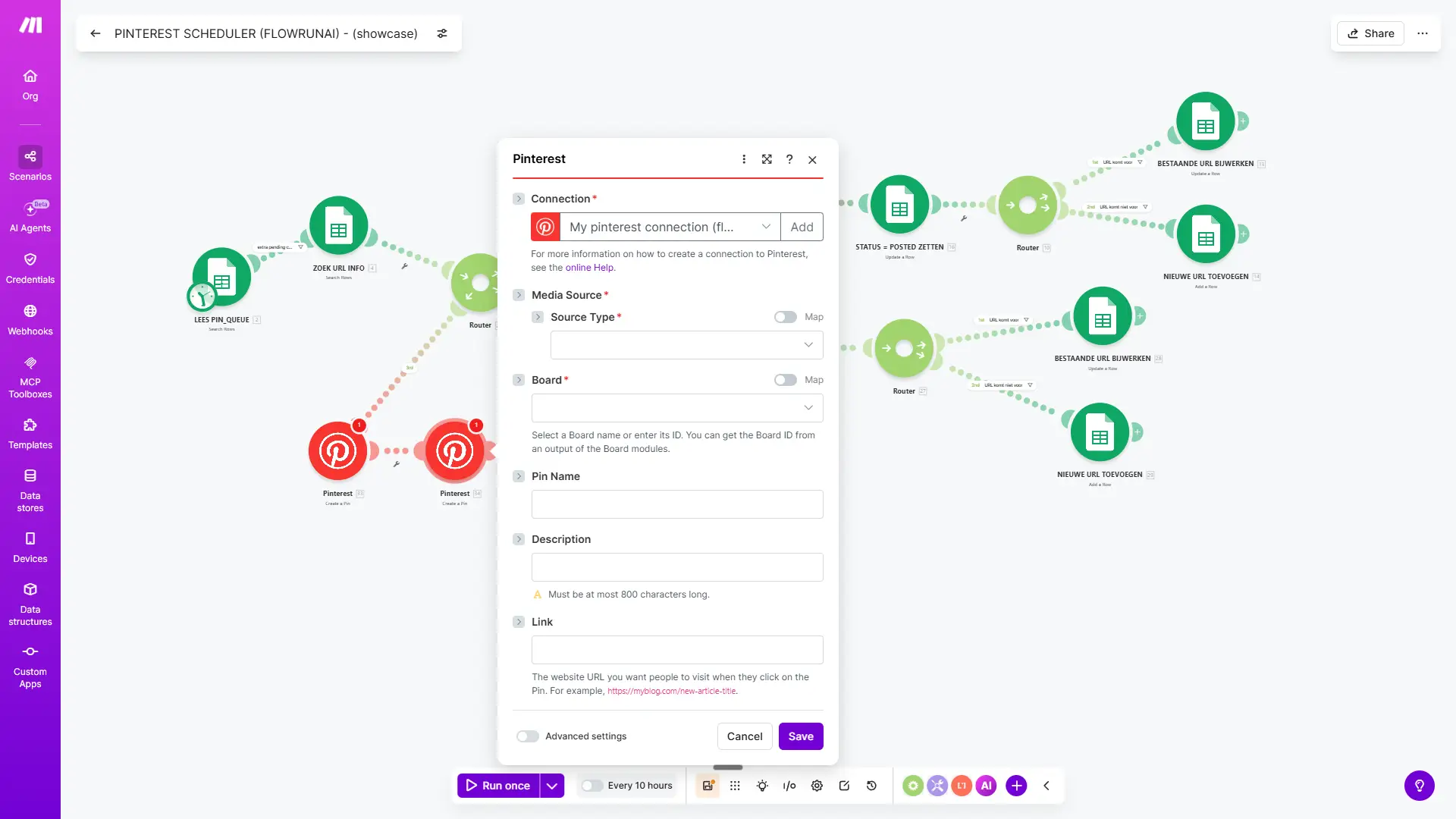
- Open the Board field dropdown. Make.com loads all boards linked to your account automatically.
- Select the board you want to post to.
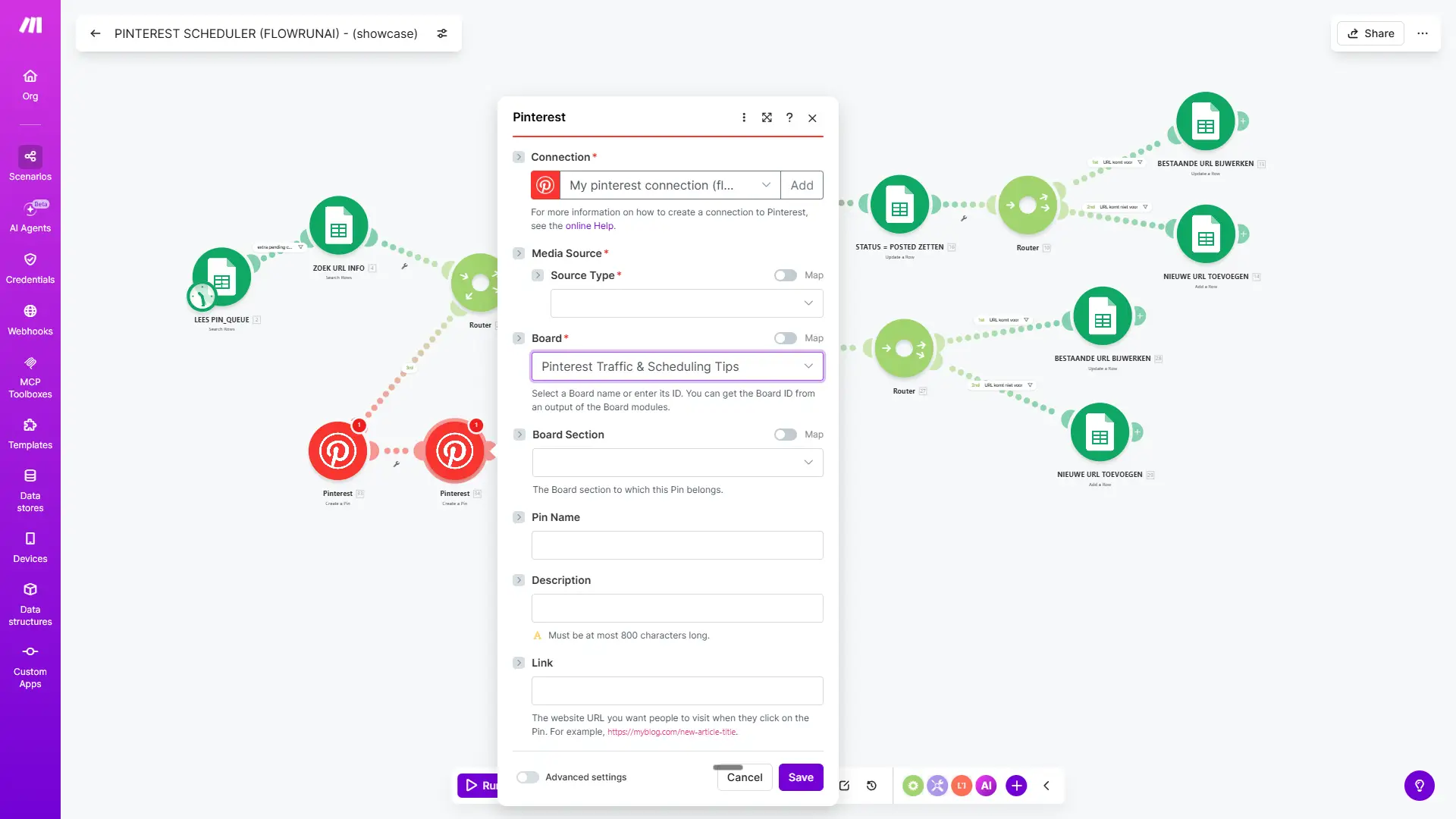
Make.com shows a hint next to the Board field: "Select a Board name or enter its ID. You can get the Board ID from an output of the Board modules." For most setups, you never get that far. The dropdown is enough.
When to Use the Dropdown - and When Not To
Use the dropdown when every pin in your scenario goes to the same board. A blog-to-Pinterest automation that always posts to one board is the ideal case. Select the board once, and you are done.
Do not use the dropdown if your scenario posts to different boards based on a spreadsheet row, a tag, or a condition. In that case, Make.com needs the numeric Board ID to map values dynamically. Method 2 or Method 3 will get you that number in under a minute.
Method 2: The Make.com Shortcut (Fastest Way to Get the Board ID)
This is the fastest way to find your Pinterest Board ID. It works entirely inside Make.com and takes about 15 seconds. Pinterest does not document this anywhere officially, and most tutorials miss it completely.
Step 1: Select Your Board From the Dropdown
Open the Create a Pin module in your Make.com scenario. Connect your Pinterest account if you have not done so yet. Open the Board field and select the board you want from the dropdown. This is the same as Method 1 so far.
Step 2: Click the Map Toggle
Next to the Board field, you will see a small toggle button labeled Map. Click it. Make.com converts the board name you selected into the full 19-digit Board ID and fills it into the field automatically. You do not need to look it up anywhere else.
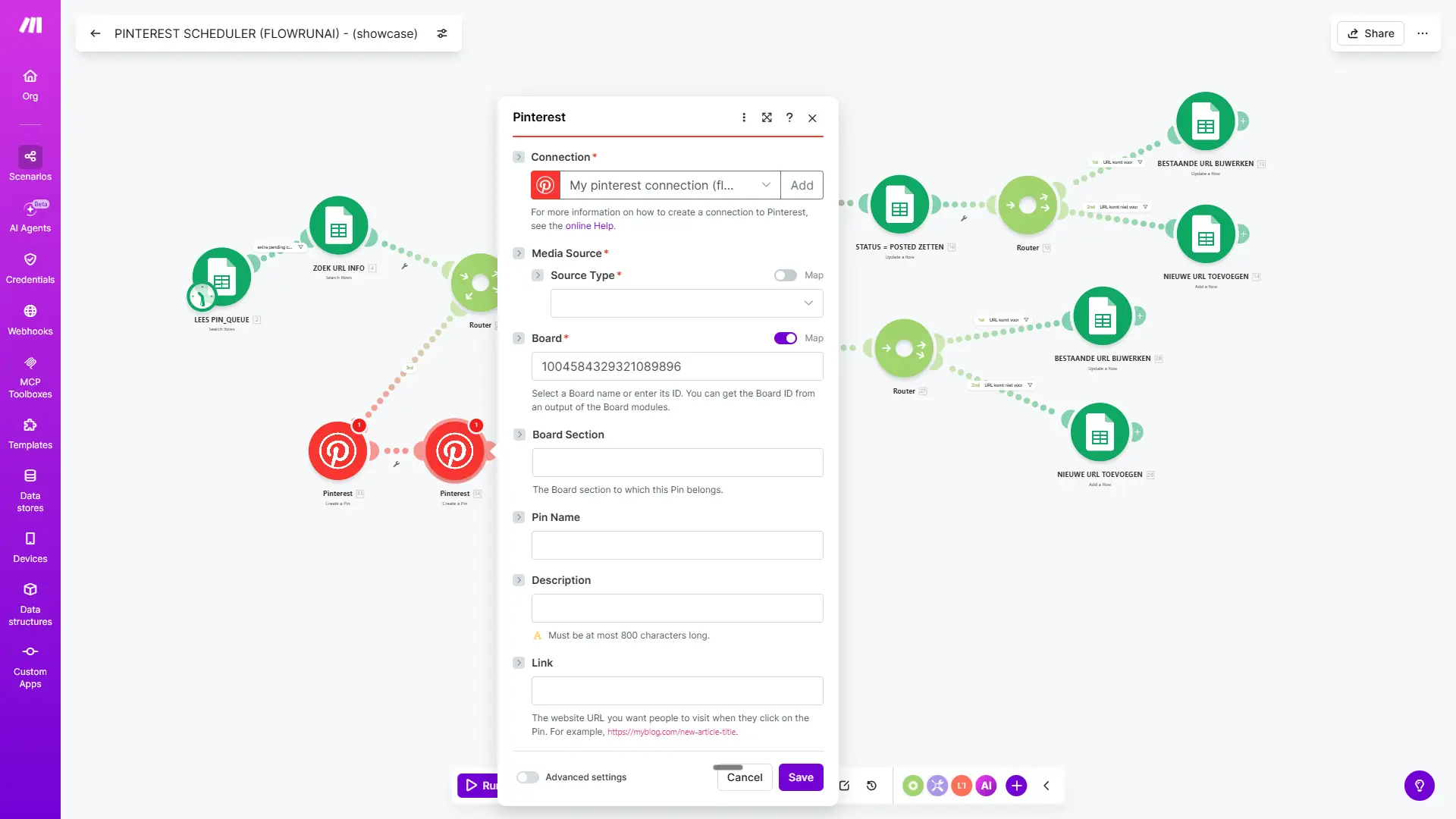
Step 3: Copy the 19-Digit Number
Copy the ID from the field. Keep Map mode on if you want to use the ID dynamically in your scenario. If you just need the number itself, copy it and switch back to dropdown mode.
I found this while building Make.com scenarios for my own blog, after spending way too long digging through Pinterest page source to find Board IDs the hard way. Wish I had known about this toggle from the start.
Method 3: Make.com List Boards (For Dynamic Multi-Board Mapping)
If you manage multiple boards and want to post to different ones based on a Google Sheet row, you need all your Board IDs in one place. The Pinterest List Boards module in Make.com pulls them all at once.
How to Add and Run the List Boards Module
- Open your Make.com scenario, or create a new one.
- Add a Pinterest - List Boards module.
- Connect your Pinterest account.
- Click Run once.
- Open the output bundle. Each board shows an "id" field containing the Board ID.
- Copy the ID for the board you need.
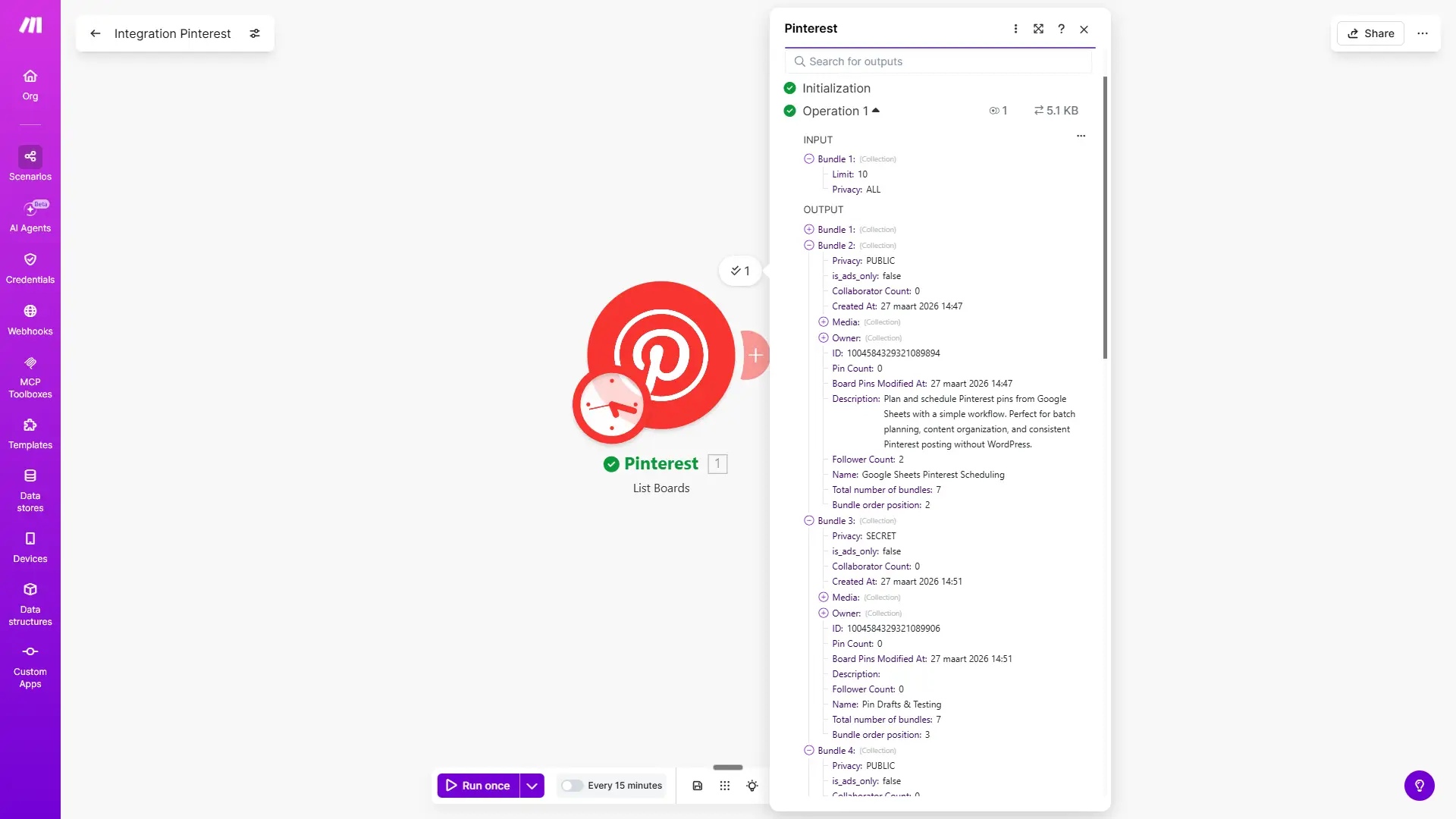
A few things to keep in mind:
- The module returns a maximum of 25 boards per page. Large accounts need pagination to see all results.
- Newly created boards may not appear until you refresh the Pinterest connection.
- Secret boards are included in the output if you are the board owner.
How to Use the Board ID in Your Google Sheet
Add a board_id column to your Google Sheet. Before you paste any ID into the column, format it as Plain Text. If you skip this step, Google Sheets rounds the 19-digit number and the ID breaks.
Format the column as Plain Text first, then paste. Not the other way around.
In your Make.com Create a Pin module, switch the Board field to Map mode and pull the board_id value from that column. Every row in your sheet can now point to a different board. I built and tested this exact setup on my own Google Sheets automation, so every step here reflects what actually works in practice.
Once your board IDs are in your sheet, you can schedule Pinterest pins from a Google Sheet automatically on any interval.
Method 4: Browser Page Source and DevTools (For Any Other Tool)
If you are using Zapier, n8n, a WordPress plugin, or any tool other than Make.com, this method works without any third-party app. Desktop only. It does not work on mobile.
How to Find Your Board ID Using Page Source (Ctrl+U)
- Log in to Pinterest on a desktop browser.
- Open the specific board you want the ID for.
- Press Ctrl+U (Windows) or Cmd+Option+U (Mac) to open the page source.
- Press Ctrl+F and search for
boardId. - You will likely get multiple results. Click through them until you see
boardIdfollowed by a 19-digit number. - That number is your Board ID.
This method requires you to be logged in as the board owner. It does not work reliably for boards you do not own.
DevTools Alternative: Find the Board ID via Network Requests
If the page source search does not give you a clear result, try the Network tab instead. Right-click anywhere on your board page and choose Inspect. Go to the Network tab and reload the page. You will see a list of requests load in.
Click through a few of the URLs in the list. On the right side you will see the request URL for each one. Look for a URL that contains your Board ID. One thing to watch out for: the number sometimes appears with two extra digits in front of it, like 221130474012654756825. In that case, remove the leading 22. The remaining 19-digit number is the correct Board ID.
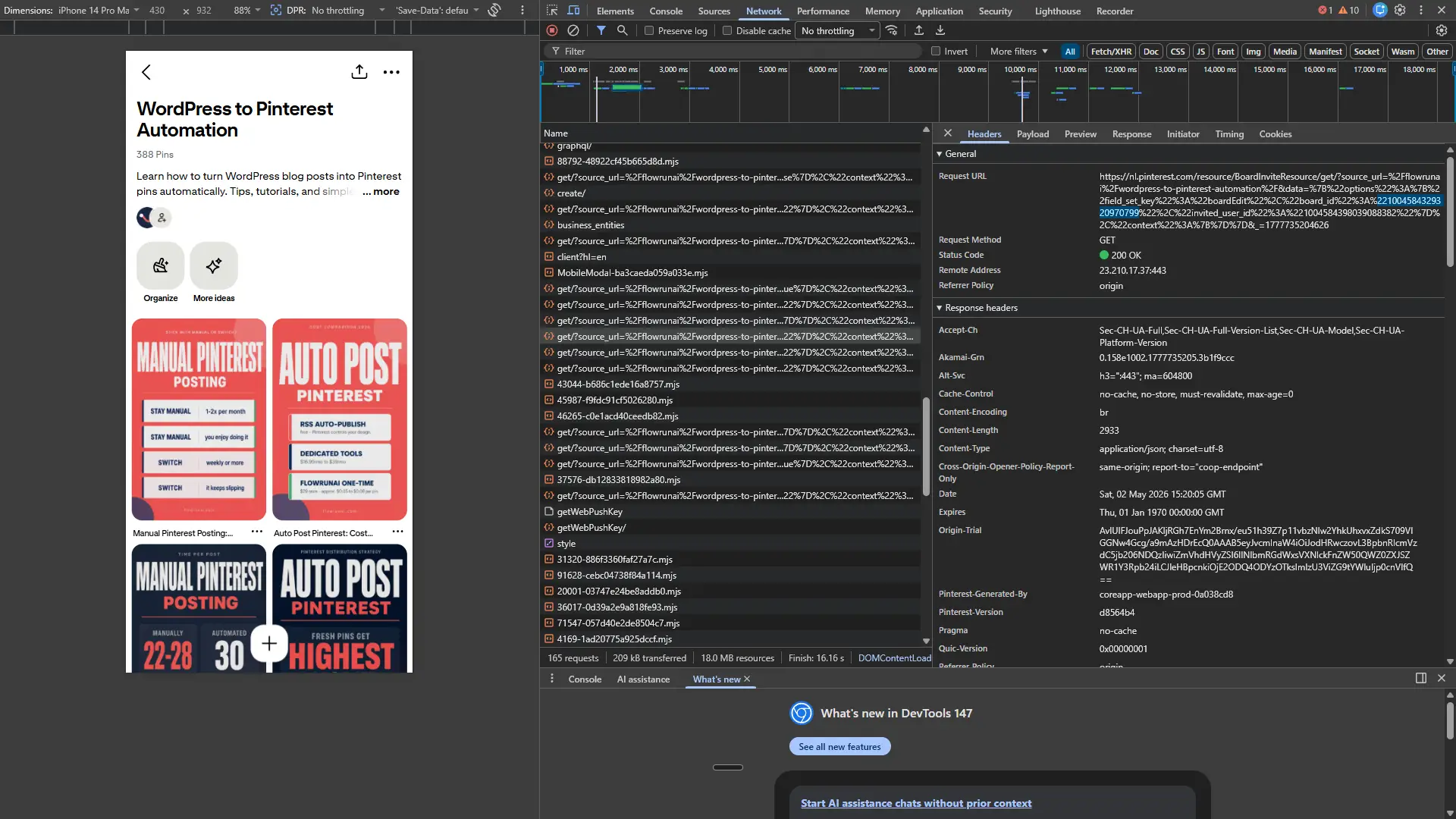
Both methods work, but neither is as fast as Method 2 if you are already in Make.com. For most readers, the Map toggle gets you the same number in about 15 seconds. If you are still deciding which tool fits your setup, this overview of Pinterest automation tools covers your options.
How to Use Your Pinterest Board ID in Make.com
Once you have your Board ID, there are two ways to use it in the Create a Pin module: the dropdown and Map mode.
Dropdown vs. Map Mode: Which to Choose
In dropdown mode, Make.com loads your boards by name. You select one and it gets hardcoded into the module. You never see or handle the Board ID yourself. Use this when every pin in your scenario goes to the same board.
In Map mode, the Board field becomes a text input. You enter the Board ID directly, or map it from a data source like a Google Sheet. Make.com shows a hint next to the field: "Select a Board name or enter its ID. You can get the Board ID from an output of the Board modules." Use Map mode when you post to multiple boards or when the target board depends on the data in your scenario.
How to Post to Multiple Boards in One Scenario
There are three ways to handle multiple boards in Make.com:
- Multiple Create a Pin modules, each hardcoded to a different board. Simple to set up, but does not scale.
- Router with a filter, routing each pin to a different module based on a condition like a category field.
- Dynamic Board ID from a Google Sheet (recommended). One Create a Pin module reads the board_id column from your sheet. Each row can point to a different board.
Always Store Your Board ID as Text, Not a Number
Google Sheets and Excel cannot store 19-digit numbers accurately. If you paste a Board ID into a standard cell, the spreadsheet rounds it. The ID looks almost right but breaks your automation silently.
Here is what that looks like in practice:
- Correct (stored as text):
1004584329321089896 - Wrong (rounded number):
1004584329321090000
Format the column as Plain Text before you paste anything into it. Do that first, then paste. If you format after pasting, the rounding has already happened and the damage is done.
Pinterest Board ID Troubleshooting
Getting an error after entering your Board ID? Match it to the table below first.
| Error | Most likely cause |
|---|---|
| Error 400 / Bad Request | Slug or URL pasted instead of numeric ID |
| 404 Board not found | ID does not exist or board is not accessible to connected account |
| 403 Not permitted | Connected account does not own or have access to the board |
| BoardSectionNotFound (code 2031) | Section ID is wrong or does not belong to that board |
Error 400 or Board Not Found in Make.com
This is the most common error. It almost always means a slug or full URL was pasted into the Board field instead of the numeric ID. Run the List Boards module to confirm the correct ID. Also check that the connected Pinterest account is the actual owner of the board.
You Pasted the URL Slug Instead of the Board ID
The Pinterest URL always shows the slug, like my-recipe-board. The numeric ID never appears in the URL. Pinterest API v5 does not accept slugs and returns Error 400 when one is submitted. Many tutorials written between 2019 and 2022 instructed readers to use the slug directly. That approach stopped working when v5 went live in April 2022.
Wrong Pinterest Account Connected
A valid Board ID from the wrong account returns a 403 or "Board not found" error. Open Make.com and check which Pinterest account is active under Connections. If you manage multiple accounts, it is easy to connect the wrong one. Reconnect with the correct account and test again.
How to Get the Board ID for a Secret Board
Secret boards have valid Board IDs and work fine with the Pinterest API. The difference is that third-party scrapers cannot access them. Use the Make.com List Boards module or the Pinterest API v5 endpoint instead. Both return secret boards when you are authenticated as the board owner.
Sandbox vs. Production Board IDs
This is not widely documented: sandbox Board IDs are completely different from production Board IDs. If you used the sandbox environment during your OAuth setup, those IDs will not work in a live Make.com scenario. Always use api.pinterest.com, not api-sandbox.pinterest.com, for any integration that posts real pins.
Frequently Asked Questions
What does a Pinterest Board ID look like?
A Pinterest Board ID is a 19-digit numeric string. Example: 1130474012654756825. It is not the same as your board name or URL slug. Always store it as plain text to prevent spreadsheet apps from rounding the value.
Does my Pinterest Board ID change when I rename my board?
No. Renaming a board only changes the URL slug. The Board ID stays the same permanently. Your Make.com or other automation setups will not break after a rename.
What is the fastest way to find my Pinterest Board ID in Make.com?
Open the Pinterest Create a Pin module, select your board from the dropdown, then click the Map toggle. Make.com automatically shows the Board ID of the selected board in the text field.
How do I get all my Pinterest Board IDs at once in Make.com?
Add a Pinterest - List Boards module to your scenario and click Run once. The output lists all your boards, each with an "id" field containing the Board ID.
Can I find my Pinterest Board ID without using code or the API?
Yes. If you use Make.com, select your board in the Create a Pin module and toggle Map - the Board ID appears instantly. If you do not use Make.com, open your board in a desktop browser, press Ctrl+U, and search for "boardId" in the page source.
Why doesn't my board URL work as the Board ID?
The URL slug (e.g., my-recipe-board) is a human-readable label, not the actual Board ID. Pinterest API v5 and tools like Make.com require the 19-digit numeric ID. Using the slug results in a Board not found error.
What is the difference between a Pinterest Board ID and a Section ID?
A Board ID identifies an entire Pinterest board and is required when creating a pin. A Section ID identifies a sub-section within that board and is optional. A Section ID cannot replace a Board ID.
Can I find my Pinterest Board ID on my phone?
No. None of the reliable methods work on mobile. The Make.com shortcut and browser page source methods both require a desktop browser or the Make.com desktop interface. Use a laptop or desktop to find your Board ID.
Last updated: May 2026