


Pinterest automatic means you publish content once and Pinterest gets a new pin without any extra work from you. No designing, no copy-pasting, no remembering to post.
There are three ways to set that up - from free Pinterest tools to fully automated Make.com setups that write and post the pin for you. Whether you publish WordPress blog posts or plan content in a spreadsheet, this article covers every option so you can pick what fits your situation.
What Does "Pinterest Automatic" Actually Mean?
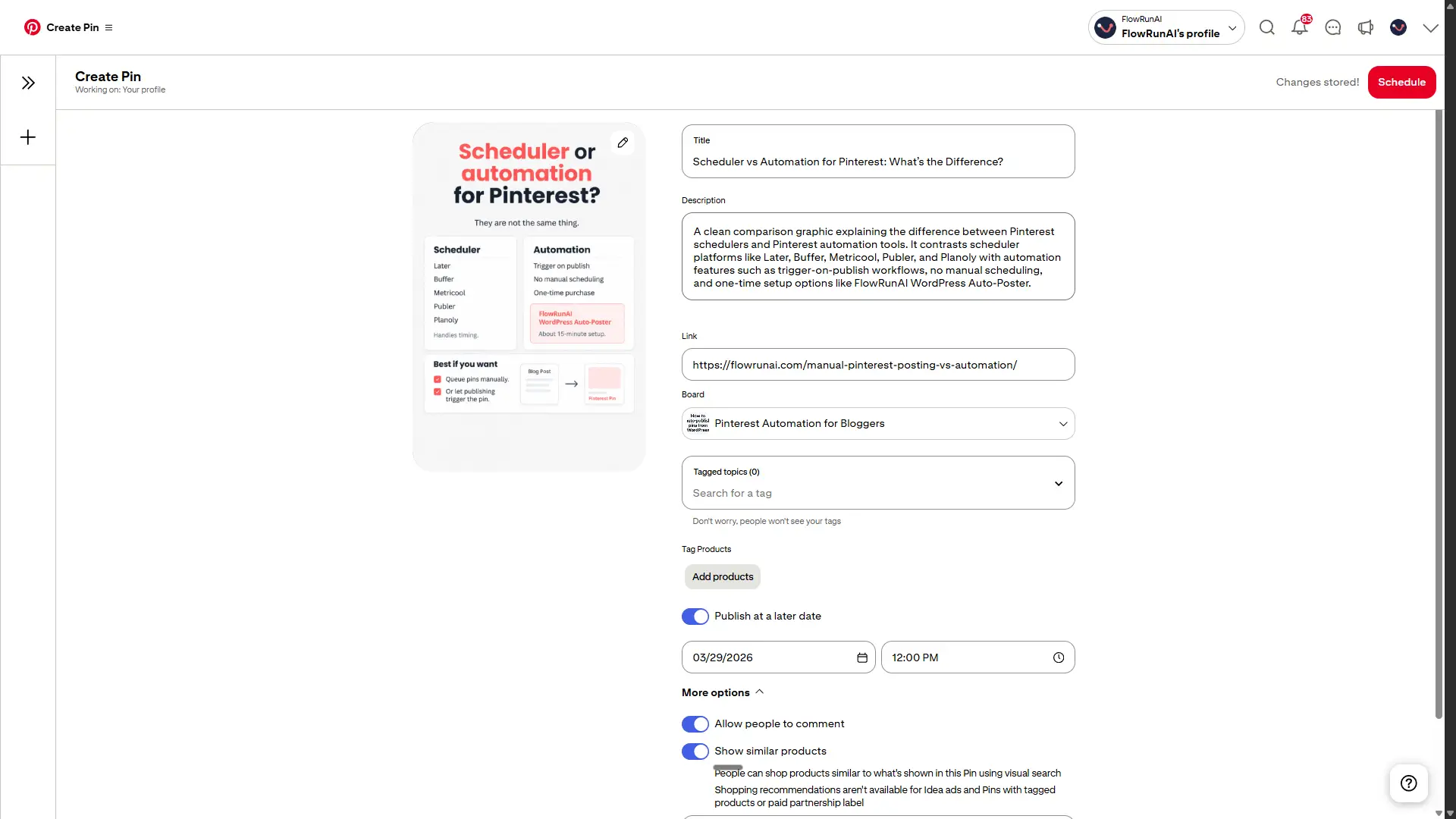
Most tools that claim to automate Pinterest are actually scheduling tools. You still create every pin yourself. The tool just picks the time to post it. The difference matters: with manual Pinterest posting, you do everything - with real automation, you hand the whole process off.
Full automation vs. scheduling: not the same thing
| Type | Examples | What you still do yourself |
|---|---|---|
| Scheduling tool | Later, Buffer, Tailwind | Design the image, write the title and description, add the link |
| True automation | Make.com, BlogToPin, RSS auto-publish | Nothing - content goes in, a published pin comes out |
If you are tired of Pinterest taking time you do not have, scheduling tools will not solve that. True automation is the only option that removes the prep work entirely.
Pinterest's Free Built-In Automatic Options
Pinterest offers four native ways to automate or batch your pins without paying for extra tools. All of them are free and available on any Business account.
RSS auto-publish
Pinterest can pull new posts from your RSS feed and turn them into pins automatically, usually within 24 hours of publishing. You set it up once and Pinterest handles the rest.
To use it, you need a claimed and verified website, a Business account, and an RSS 2.x feed. Atom feeds do not work. Pinterest can publish up to 200 pins per day this way.
The main limitation is control. Pinterest writes the pin title and description itself based on your post metadata. You cannot customize them, and there are no AI-generated images. If your feed is missing image tags, pins go out without a proper image. Other common blockers: your domain is not claimed yet, or your site outputs an Atom feed instead of RSS 2.x.
RSS auto-publish works well if you publish frequently and do not mind handing Pinterest full control over how your pins look.
Bulk CSV upload
Pinterest lets you upload a spreadsheet with up to 200 pins at once. Each row contains an image URL, title, description, destination link, board name, and publish date. Pinterest schedules and posts them automatically from there.
A few things to know: this only works on desktop, and publish dates need to be in UTC. If you like planning content in batches and already have your images ready, this is the most practical free option available.
Native pin scheduler and Instagram auto-publish
Pinterest's built-in scheduler lets you queue up to 10 pins at a time, up to 30 days ahead. You may have seen older guides mentioning a 2-week limit. That is outdated. The current scheduling window is 30 days.
Pinterest also connects directly to Instagram. Once linked, future Instagram posts can cross-post to Pinterest automatically. You can also do a one-time import of up to 90 days of historical Instagram content - useful if you are just getting started on Pinterest and want something there immediately.
Third-Party Pinterest Automation Tools
When native Pinterest tools are not enough, third-party options fill the gap. They fall into two categories: tools that help you schedule pins better, and tools that actually generate and post them for you.
Scheduling tools: Tailwind, Buffer, Later, SocialBee
These tools give you better queue management, analytics, and bulk uploading on top of what Pinterest offers natively. Useful for staying consistent, but not the same as automation.
You still create every pin yourself. That means designing the image, writing the title and description, adding the link. The tool decides when to post it. If that prep work is the part you want to get rid of, a scheduling tool will not help you.
Pricing: Tailwind from $17.99/mo (annual), Buffer from $5/mo per channel, Later from $18.75/mo (annual), SocialBee from $29/mo. For a full side-by-side breakdown, the guide to Tailwind alternatives covers every option in detail.
Dedicated automation tools: BlogToPin and Pin Generator
These tools do the work schedulers skip. Paste in a URL and they generate the image, write the pin, and post it. No Canva, no copy-paste, no forgetting.
| Tool | Price | Best for |
|---|---|---|
| BlogToPin | From $39/mo (Starter) | Bloggers and creators who want to automate from existing content with minimal setup |
| Pin Generator | From $16.99/mo (Starter) | Bulk pin creation, Shopify and Etsy sellers |
BlogToPin is the one most creators land on. It does exactly what it says without much fiddling. Pin Generator is worth a look if you run a shop or want a lower entry price.
Full End-to-End Automation with Make.com
RSS auto-publish is free but hands Pinterest full control over your pin design. BlogToPin and Pin Generator give you that control back, but come with a monthly subscription. Make.com sits in a different spot: a one-time $29 blueprint, full control over every pin, AI-generated images, and no recurring tool cost. You only pay for what you actually use.
Approach A: WordPress post to Pinterest pin
This setup watches for newly published WordPress posts and turns each one into a Pinterest pin automatically. The whole process takes about 60 seconds and runs without any input from you.
Here is what happens step by step:
- Detects a newly published WordPress post
- Extracts the title, content, and permalink
- AI generates a Pinterest-optimized pin title
- AI writes a keyword-rich description with hashtags
- Creates an image prompt based on the article content
- Generates a vertical 2:3 Pinterest image at the recommended pin dimensions
- Writes alt text for accessibility
- Uploads the image to your WordPress Media Library
- Sets the image as the Featured Image on the post
- Publishes the pin to your Pinterest board with link and metadata
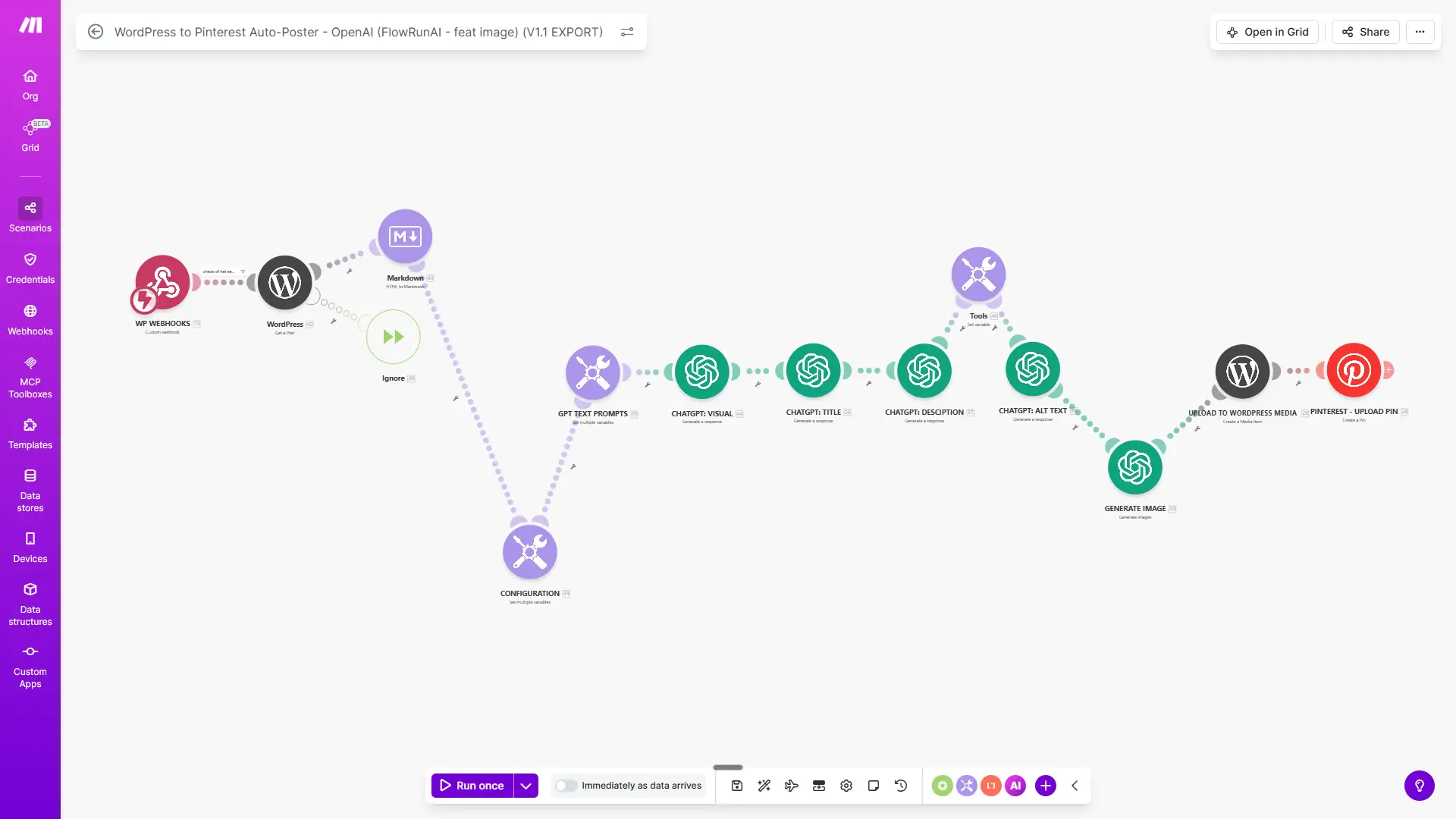
To run this setup you need a Make.com account (free tier is enough), WordPress with the WP Webhooks plugin, an OpenAI API key with some credit, and a Pinterest Business account. Cost per pin is roughly $0.05-$0.08 based on current OpenAI pricing.
Building it yourself is very doable. The complete setup tutorial walks you through every module in the scenario. If you would rather skip the build entirely, the WordPress Pinterest Auto-Poster is a ready-made blueprint that gets you up and running in 15 minutes.
Approach B: Google Sheets to Pinterest pin
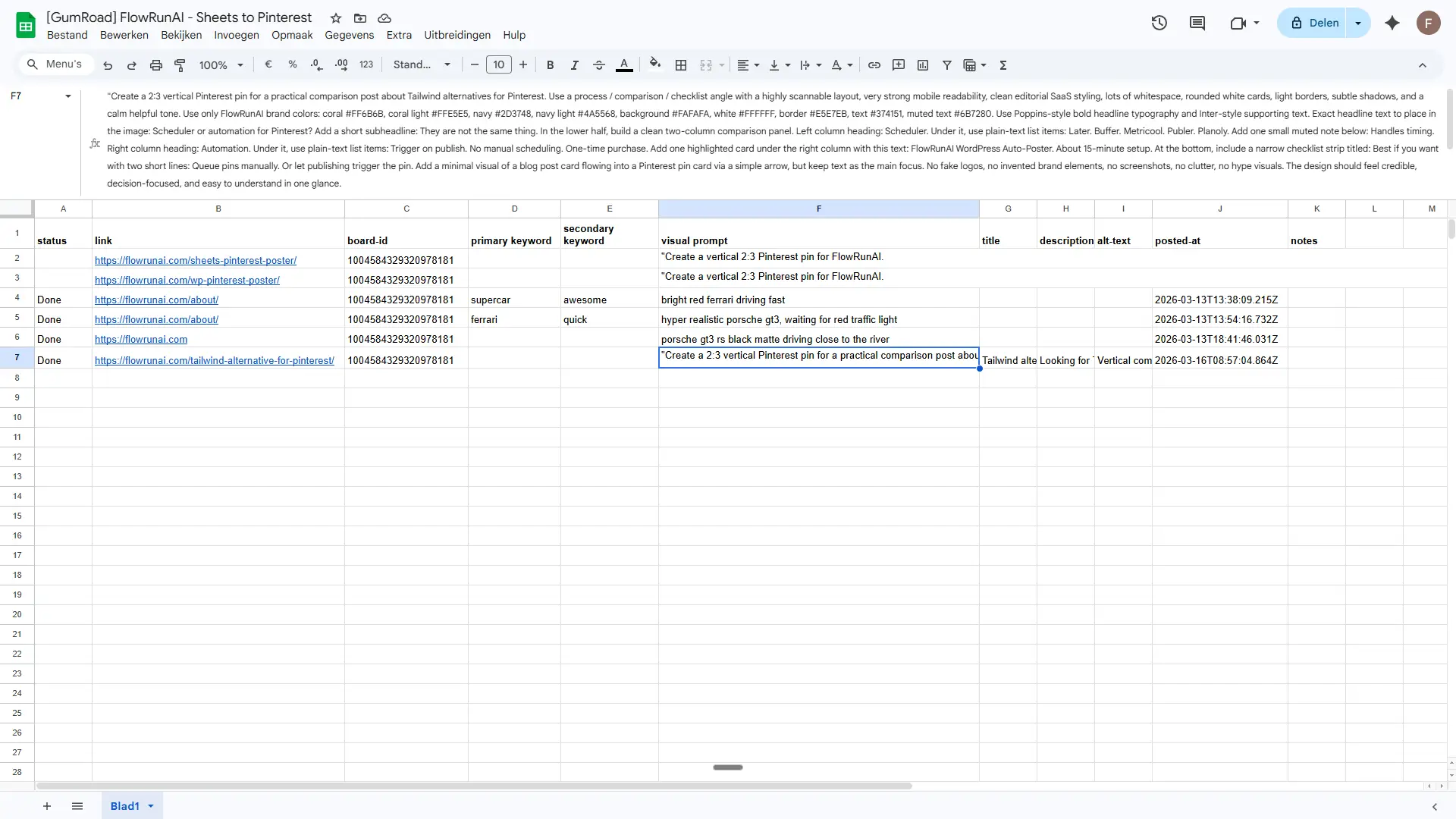
No WordPress? No problem. This setup runs entirely from a Google Sheet. You add a row, fill in three fields, and Make.com takes it from there. The automation checks your sheet on a schedule, generates the image, writes the title and description, publishes the pin, and marks the row as "Done" automatically.
The three fields you fill in:
| Column | What to fill in |
|---|---|
| Visual Prompt | Description for AI image generation |
| Primary Keyword | Main keyword for title and description |
| Secondary Keyword | Supporting keyword for SEO |
| Status | Auto-filled: "Done" after posting |
This is the better fit if you do not use WordPress, if you prefer planning your content in bulk, or if you have tried Pinterest before but could not keep up the consistency. Queuing 30 pins at once and letting the automation handle the rest removes the part that most people quit over. No blog required.
The Sheets to Pinterest Auto-Poster is a ready-made Make.com blueprint that handles everything - image, title, description, and posting - for a one-time $29. It includes the ready-to-import blueprint, a step-by-step PDF setup guide, pre-configured AI prompts, a Google Sheets template with the correct column structure, a troubleshooting checklist, and email support if you get stuck.
What You Need Before You Start
Most automation options have the same two requirements: a Pinterest Business account and a place to host your images. Here is what to check before you set anything up.
Pinterest Business account and API access
A Pinterest Business account is free and required for every serious automation option on this list. It unlocks Pinterest Analytics, Rich Pins, API access, RSS auto-publish, bulk CSV upload, and the native scheduler. If you currently have a personal account, you can convert it in Pinterest Settings without losing your existing content.
One thing worth clarifying: Pinterest has Trial and Standard API access tiers, but this only matters if you are building a custom Pinterest app from scratch. Make.com has its own pre-approved Pinterest integration, so users of the FlowRunAI blueprints do not need to apply for API access or register a developer app. You just connect your Pinterest account inside Make.com and you are good to go.
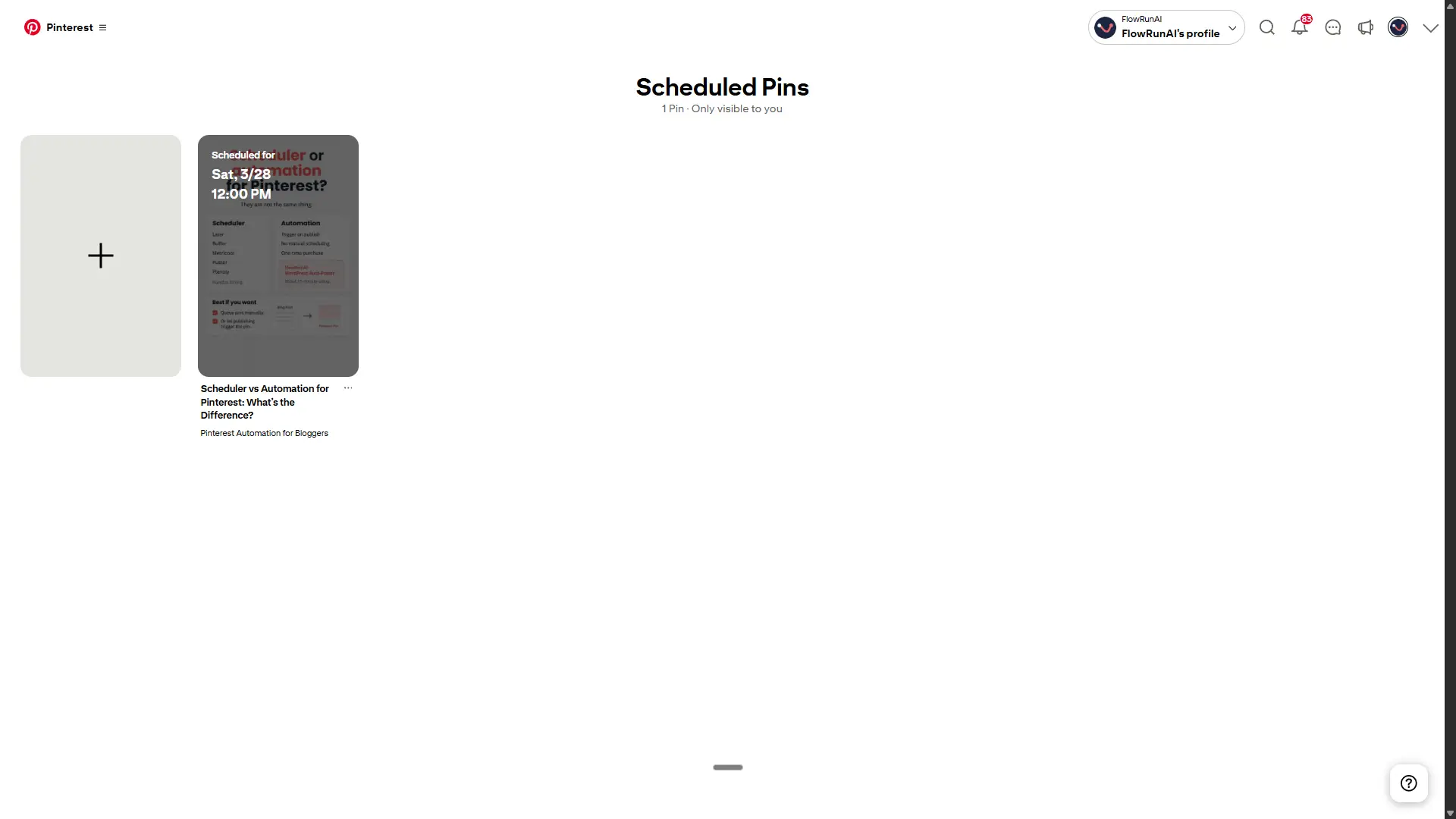
Image hosting
For the FlowRunAI Make.com workflows, image hosting is handled automatically. The image is generated via OpenAI and passed directly to Pinterest within the same scenario. For the WordPress workflow, the image is also uploaded to your WordPress Media Library in the same run. No external hosting step needed.
If you build a custom Make.com workflow that pulls images from an external source, those images do need to be on a publicly accessible URL. Local files will not work in that case.